
Shrinkpad
Shrinkpad effortlessly batch compresses images and videos on Mac, optimizing your assets for faster performance and.
Visit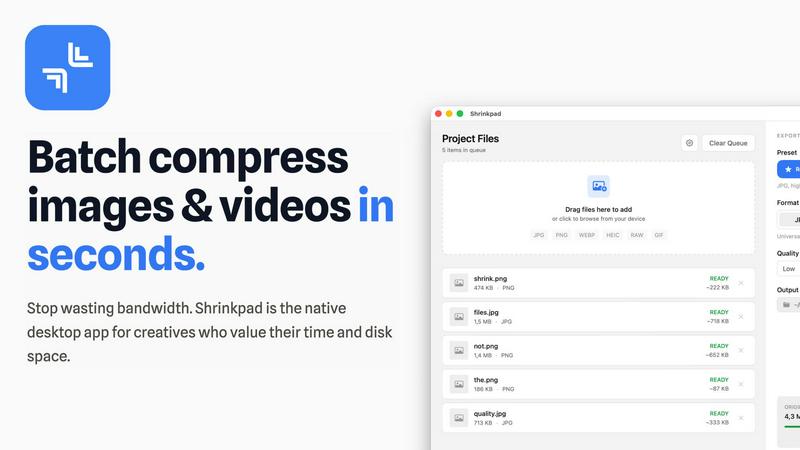
About Shrinkpad
Shrinkpad is a cutting-edge batch compression tool tailored for Mac users who require efficient management of their media files. This powerful application allows users to swiftly compress images and videos, making it the perfect solution for photographers, designers, content creators, and anyone regularly handling large media files. By enabling the compression of hundreds of files or entire folders in mere seconds, Shrinkpad drastically reduces storage space while maintaining the visual quality of your media. With a strong emphasis on privacy, all processing takes place locally on your Mac, ensuring that your files remain secure and untouched by cloud services. Supporting over 50 formats out of the box, Shrinkpad provides seamless compatibility, allowing users to compress various types of media without hassle. Featuring customizable settings and a user-friendly interface, Shrinkpad stands out as the ultimate tool for optimizing your assets without compromising quality or privacy.
Features of Shrinkpad
Automatic Compression Optimization
Shrinkpad takes the guesswork out of media compression by automatically analyzing the visual complexity of your files. This feature applies the perfect compression ratio without introducing artifacts, ensuring high-quality results every time.
Unlimited Batching
With Shrinkpad, users can process thousands of assets without the risk of crashes. Unlike typical web-based tools, this application effortlessly handles massive queues, allowing for efficient batch processing of images and videos in a single operation.
One-Drop Import
Gone are the days of dragging files one by one. Shrinkpad’s One-Drop Import feature allows users to simply drag an entire folder onto the app, instantly detecting and adding all supported images and videos to the batch list for quick compression.
Privacy-Focused Processing
Shrinkpad processes all files locally on your Mac, ensuring that your sensitive assets never leave your device. This privacy-first approach guarantees that no uploads to the cloud take place, giving you peace of mind while optimizing your media files.
Use Cases of Shrinkpad
Optimizing Photography Workflows
Photographers can benefit immensely from Shrinkpad by efficiently compressing large sets of images without sacrificing quality. This allows for faster sharing and storage, making it easier to manage extensive portfolios.
Streamlining Design Projects
Designers using software like Figma or Photoshop can save hours by exporting assets in bulk at higher resolutions and letting Shrinkpad handle the optimization and renaming automatically, thus enhancing productivity.
Enhancing Video Editing Processes
Content creators working with video files can utilize Shrinkpad to compress large video assets quickly. This ensures that videos load faster on websites and platforms, improving user experience without losing visual fidelity.
Managing Web Assets Efficiently
Web developers and digital marketers can leverage Shrinkpad to compress images and videos for websites, significantly reducing load times. This not only enhances the performance of the site but also contributes to better SEO outcomes.
Frequently Asked Questions
Can I use Shrinkpad for free?
Yes, Shrinkpad offers a Free Starter plan that includes essential tools for casual use, allowing you to compress a limited number of files per batch.
What file formats does Shrinkpad support?
Shrinkpad supports over 50 file formats, including popular image formats like JPG, PNG, and WEBP, as well as video formats such as MP4 and MOV.
Does Shrinkpad support video compression?
Absolutely! Shrinkpad is designed to handle both image and video compression, allowing users to process mixed media batches effortlessly.
How many files can I process at once?
With the Personal and Team plans, users can process unlimited files per batch, enabling efficient handling of even the largest media collections without any restrictions.
Explore more in this category:
Similar to Shrinkpad
Sprite Sheet Maker
A free browser-based toolkit for creating, cutting, converting, and previewing sprite sheet animations.
Produktly
One no-code tool for onboarding, announcements, and feedback: tours, checklists, changelogs, roadmaps, and NPS for SaaS teams.

FaceCoda
Free AI attractiveness test and face analysis with private, on-device photo processing.

Meigen AI
Create and edit AI images and videos with leading models in one workspace.
GPT Image 2 API
Generate and edit production-ready images with GPT Image 2 API, clear text rendering, reference images, and developer-friendly API workflows.
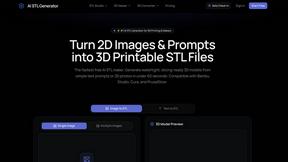
AI STL Generator
The fastest AI STL generator to turn prompts and images into 3D printable STL files.
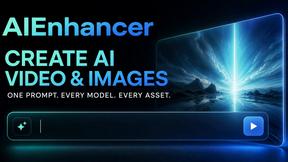
AIEnhancer
AI photo, image, and video enhancement with creative effects and shared asset workflows.

VidRush AI
AI-powered long video generator. Combine images, video, audio, and text into production-ready videos.