RemoveTexts vs TinyFast
Side-by-side comparison to help you choose the right product.

RemoveTexts
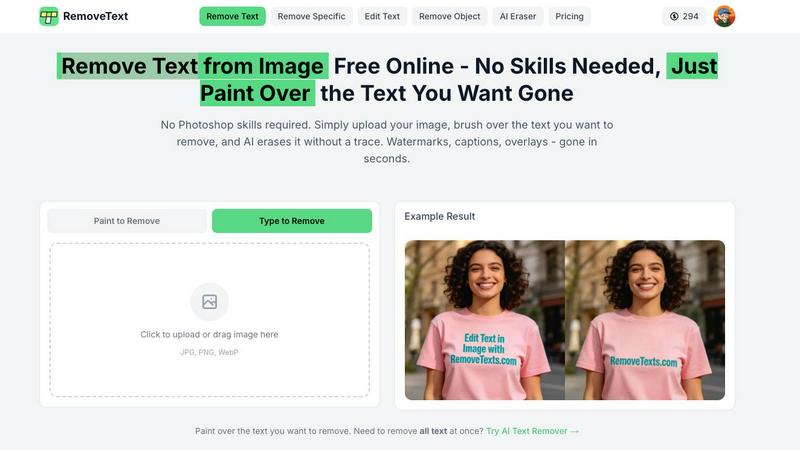
Together, we can instantly erase any text from your images using our simple, AI-powered tool.
Last updated: March 11, 2026

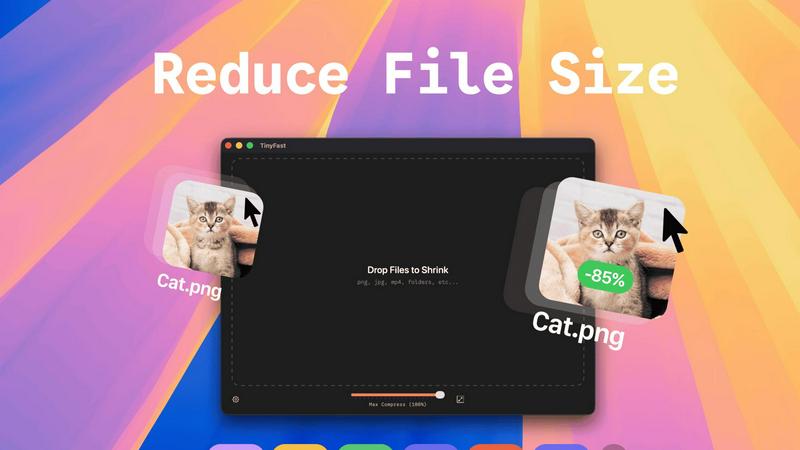
TinyFast is your team's local Mac tool for fast, private file compression without uploads.
Last updated: February 28, 2026
Visual Comparison
RemoveTexts
TinyFast
Feature Comparison
RemoveTexts
Paint to Remove
This feature puts precise control in your hands, allowing for a truly cooperative editing process. Simply use the brush tool to paint over the specific text or element you wish to erase. The AI then works in tandem with your selection, removing only the targeted areas while seamlessly reconstructing the underlying background. It's perfect for detailed work where you need to preserve other text or complex image details, ensuring the final result is a product of your guidance and the AI's execution.
Auto Remove All Text
Designed for ultimate teamwork between you and the AI, this one-click feature automates the entire detection and removal process. Upon upload, the AI comprehensively scans the image to identify every text element—be it watermarks, subtitles, or captions—and removes them all simultaneously. This synergy saves immense time, delivering a completely clean image in seconds, which is ideal for quickly preparing screenshots or batch-processing images without manual intervention.
Edit & Replace Text
Go beyond simple removal and collaboratively edit your images. This innovative feature allows you to select existing text and replace it with new content. The AI doesn't just insert new words; it intelligently analyzes and matches the original font style, size, and color, blending your new text seamlessly into the image. This cooperative function is invaluable for updating memes, correcting information in graphics, or localizing content without starting from scratch.
Remove Objects
Extending its collaborative capabilities beyond text, this feature enables you to erase any unwanted object, person, logo, or visual element from your photos. By working together with the AI—either through precise brushing or broad selection—you can clean up distractions, eliminate photobombers, or remove proprietary branding. The AI fills the space with a contextually accurate background, making it appear as though the object was never there, a true testament to seamless human-AI partnership.
TinyFast
100% Local & Private Processing
Your team's confidentiality is paramount. TinyFast operates entirely on your local machine, ensuring that files—whether they're unreleased designs, legal documents, or proprietary code—never leave your Mac. This local-first approach, built on a foundation of mutual trust and security, means no uploads to unknown cloud servers, eliminating data breach risks and perfectly aligning with strict privacy policies or NDAs for seamless and secure collaboration.
Blazing-Fast Drag & Drop Compression
Experience a frictionless workflow designed for team efficiency. Simply drag and drop any file or even entire folders directly into the TinyFast window. The application uses optimized native engines to process and shrink your files in seconds, not minutes. This instant, local compression saves your team hours every week by removing the tedious wait times associated with uploading to and downloading from online services.
Universal File Type Support
TinyFast is your team's universal compression toolkit, fostering cooperation across different project types. It supports a wide array of common file formats, including images (PNG, JPG, WEBP, SVG), videos (MP4, MOV), documents (PDF, DOCX), code files (JS, CSS, JSON), and audio (MP3). This versatility means everyone, from marketing to development, can use the same trusted tool, streamlining your team's asset optimization process.
Batch Processing & Resolution Control
Empower your team to handle large volumes of work with ease. TinyFast allows for batch compression of entire folders, delivering optimized outputs in one go—a perfect synergy for project handoffs or preparing multiple assets for publication. Additionally, for images and videos, you can collaboratively decide and set automatic resolution resizing, ensuring files are perfectly tailored for their intended use, from web pages to client presentations.
Use Cases
RemoveTexts
Cleaning Product Photos for E-Commerce
Online sellers and marketing teams can work together with RemoveTexts to create clean, professional product catalogs. The tool effortlessly removes distracting watermarks from supplier images, erases promotional text overlays from old campaign photos, or deletes date stamps. This collaborative cleanup ensures products are presented in their best light, enhancing the shopping experience and driving sales without requiring a dedicated designer.
Preparing Professional Presentations and Reports
Professionals across legal, consulting, and corporate sectors can use RemoveTexts as a cooperative partner to redact sensitive information from screenshots or clean up cluttered visuals for client-facing materials. Quickly removing usernames, confidential data, or unwanted UI text from slides and documents ensures a polished, trustworthy presentation that communicates clearly and protects privacy.
Enhancing Social Media and Blog Content
Content creators and social media managers can synergize with RemoveTexts to maintain a consistent, aesthetic brand presence. The tool is perfect for removing subtitles from video thumbnails, erasing meme text to repurpose an image, or deleting intrusive watermarks from stock photos. This collaboration allows for rapid content creation and repurposing, keeping visual feeds engaging and on-brand.
Revitalizing Personal Photographs
Individuals and families can partner with RemoveTexts to restore and improve personal memories. Easily remove date stamps from old digital photos, erase unwanted photobombers from vacation pictures, or delete distracting text overlays that were popular in older editing software. This cooperative effort helps preserve cherished moments in their purest visual form.
TinyFast
Preparing Design Assets for Developer Handoff
Design teams can efficiently compress and batch-export high-fidelity mockups, icons, and images directly on their Macs. By using TinyFast, they ensure all assets are optimized for web performance before handing them off to the development team, maintaining visual quality while enabling faster site load times and a smoother, more cooperative workflow between departments.
Securely Sharing Confidential Client Documents
Legal, financial, or consulting professionals often need to share large PDF reports or presentations containing sensitive data. TinyFast allows them to compress these documents locally to a manageable email size without ever risking client confidentiality by uploading files to a third-party server, fostering a relationship built on trust and security.
Optimizing Media for Web and Social Content
Content creators and marketing teams can quickly prepare dozens of images and videos for blogs, social media, or website updates. The batch processing feature saves immense time, and the local operation means unpublished campaign materials stay secure until the moment they are ready for public release, supporting a cohesive and efficient content pipeline.
Managing Application and Project File Sizes
Developers and project managers can reduce the size of project repositories by compressing documentation, code bundles (like minified JS/CSS), and screenshot libraries directly on their machines. This keeps shared drives and version control systems lean, facilitates quicker backups and transfers, and promotes a more organized and efficient collaborative coding environment.
Overview
About RemoveTexts
RemoveTexts is a collaborative, AI-powered platform designed to make professional image editing accessible to everyone, regardless of their design skills. By working in synergy with your creative process, it effortlessly removes unwanted text, watermarks, date stamps, and objects from any image. The tool is built for teams and individuals who value efficiency and clean results, from marketers and e-commerce sellers to content creators and legal professionals. Its core value proposition lies in transforming a traditionally complex task into a simple, one-click operation. Powered by state-of-the-art generative AI, it intelligently reconstructs the background for seamless, traceless edits in under 30 seconds, fostering a cooperative workflow where technology handles the heavy lifting so you can focus on your core creative or professional goals. Trusted by a global community of over 50,000 users, RemoveTexts is your partner in achieving pristine visuals.
About TinyFast
TinyFast is a powerful and intuitive macOS application built for teams and individuals who prioritize speed, security, and seamless collaboration in their digital workflows. It serves as your dedicated, local file compression partner, enabling you to shrink images, videos, and documents directly on your Mac. By eliminating the need to upload sensitive files to external servers, TinyFast ensures your confidential assets and collaborative projects remain private and secure. It's designed for creators, developers, designers, and professionals who need to optimize files for sharing, storage, or web use without compromising on quality or waiting for slow online tools. The core value proposition is a synergy of unmatched privacy, blazing-fast local processing, and an incredibly simple drag-and-drop interface that integrates effortlessly into any team's workflow, making file optimization a quick and secure step rather than a bottleneck.
Frequently Asked Questions
RemoveTexts FAQ
What image formats does RemoveTexts support?
RemoveTexts supports common image formats to ensure broad compatibility for your projects. You can upload images in JPG, PNG, or WebP format. The platform accepts files up to 10 MB in size, which is suitable for most high-resolution photographs and digital graphics used online and in print.
Is RemoveTexts completely free to use?
Yes, RemoveTexts offers a robust free online tool that allows you to upload images, remove text, and download the results without any cost. The free service is designed to provide full functionality for most users, including seamless background reconstruction, without placing a watermark on your edited images.
How does the AI ensure the background looks natural after removal?
The AI employs advanced deep learning inpainting technology, similar to architectures pioneered by leading research institutions. It analyzes the pixels surrounding the removed text or object, understanding patterns, textures, and colors. It then intelligently synthesizes new pixel data that matches the context, ensuring perfect edge blending and a seamless, traceless finish that makes edits indistinguishable from the original background.
Can I use RemoveTexts to edit text or remove objects, not just text?
Absolutely. RemoveTexts is built as a versatile collaborative tool with multiple specialized modes. Beyond removing text, you can use the "Edit Text" mode to replace existing text with new content while matching the original style. The "Remove Objects" mode is specifically designed to erase any unwanted element, such as people, logos, or other objects, from your photographs with the same AI-powered precision.
TinyFast FAQ
Is my data really kept private?
Absolutely. TinyFast is built on a principle of collaborative trust and security. All compression happens locally on your Mac using its own processing power. Your files are never uploaded to the internet, sent to our servers, or seen by anyone else. This local-only approach guarantees total privacy for your work and your team's confidential assets.
What file types does TinyFast support?
TinyFast supports a wide range of common file types to serve diverse team needs. This includes images (PNG, JPG, TIFF, HEIC, WEBP, GIF, BMP, SVG), videos (MP4, MOV, M4V), documents (PDF, DOCX), code files (JS, CSS, JSON), and audio (MP3). This universal support makes it a versatile tool for entire teams across different functions.
How does the free version work?
The free version of TinyFast allows you and your team to fully experience the application's core features, including local privacy and drag-and-drop simplicity. It permits compressing up to 5 files per day, which is ideal for testing its integration into your workflow or for occasional use. For unlimited daily compressions and full collaborative potential, a one-time or subscription plan is available.
Can I compress multiple files at once?
Yes, you can! TinyFast is designed for team efficiency and supports batch processing. You can drag and drop an entire folder containing multiple files into the app. It will compress all supported files within that folder in one go, saving your team significant time and streamlining the process of preparing large sets of assets for any project.
Alternatives
RemoveTexts Alternatives
RemoveTexts is a specialized AI-powered image editing tool designed to quickly and effortlessly remove unwanted text from any image. It falls into the category of automated photo cleanup and inpainting software, offering a streamlined alternative to complex programs like Photoshop. Users often seek out different tools to find the perfect fit for their specific workflow and needs. Common reasons for exploring other options include varying budget constraints, the need for different feature sets like object removal or background generation, and compatibility with specific operating systems or platforms. Some teams may require different collaboration features or integration capabilities that better suit their project management style. When evaluating other solutions, it's wise to consider the core AI technology's accuracy, the speed of processing, output quality, and overall ease of use. The goal is to find a tool that integrates seamlessly with your team's creative process, enhancing productivity through intuitive design and reliable performance, ensuring everyone can contribute effectively to the final visual asset.
TinyFast Alternatives
TinyFast is a powerful macOS application in the tech tools category, designed for local, private compression of images, videos, and PDFs. It stands out by keeping all your files securely on your device, eliminating the need for potentially risky cloud uploads. Users often explore other options for various reasons. Some may need a solution for a different operating system like Windows, while others might seek a different pricing model or require a specific feature that aligns with their unique workflow. It's a natural part of finding the perfect tool for your team's collaborative needs. When evaluating other tools, consider your group's core priorities. Key factors often include the platform compatibility, the balance of compression speed and quality, the overall cost for your team, and, crucially, the privacy policy regarding where your files are processed. Finding a tool that fosters synergy in your workflow is essential.